Scanning a property with FloorCapture is quick and straightforward. With just your iPhone or iPad, you can capture an accurate digital version of any space and start working with it right away.
Watch the video to see how it’s done or follow the step-by-step guide below.
What should I do before I start a scan?
- Take a moment to review all the tips below.
- Make sure the property is prepared for scanning.
How do I scan with FloorCapture?
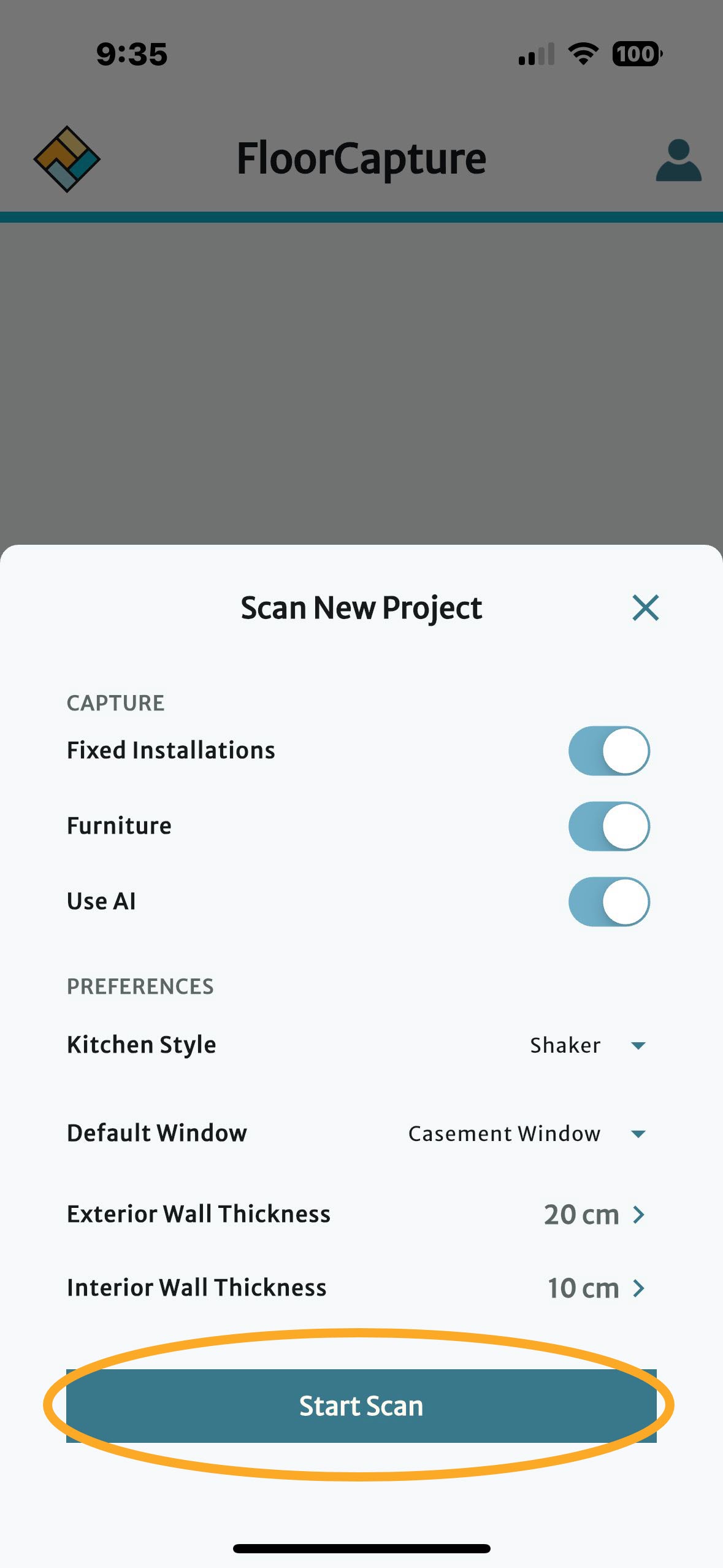
- Open FloorCapture: Tap New Project and Scan Interior. Set any options and then tap Start Scan.
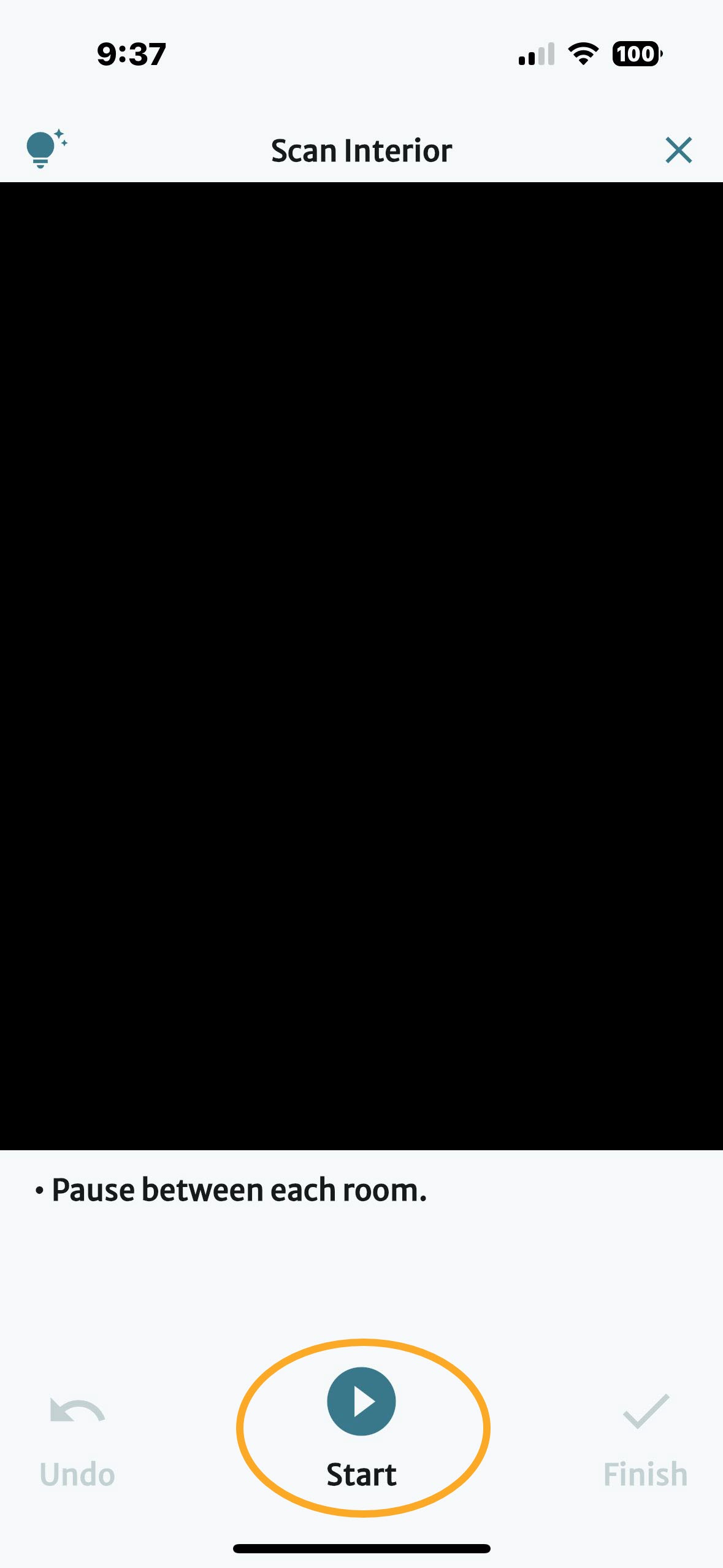
- Position yourself: Walk into the room where you want to start. For best results, close the door. If possible, stand near the middle of the room about 5 feet (1.5 meters) from a wall.
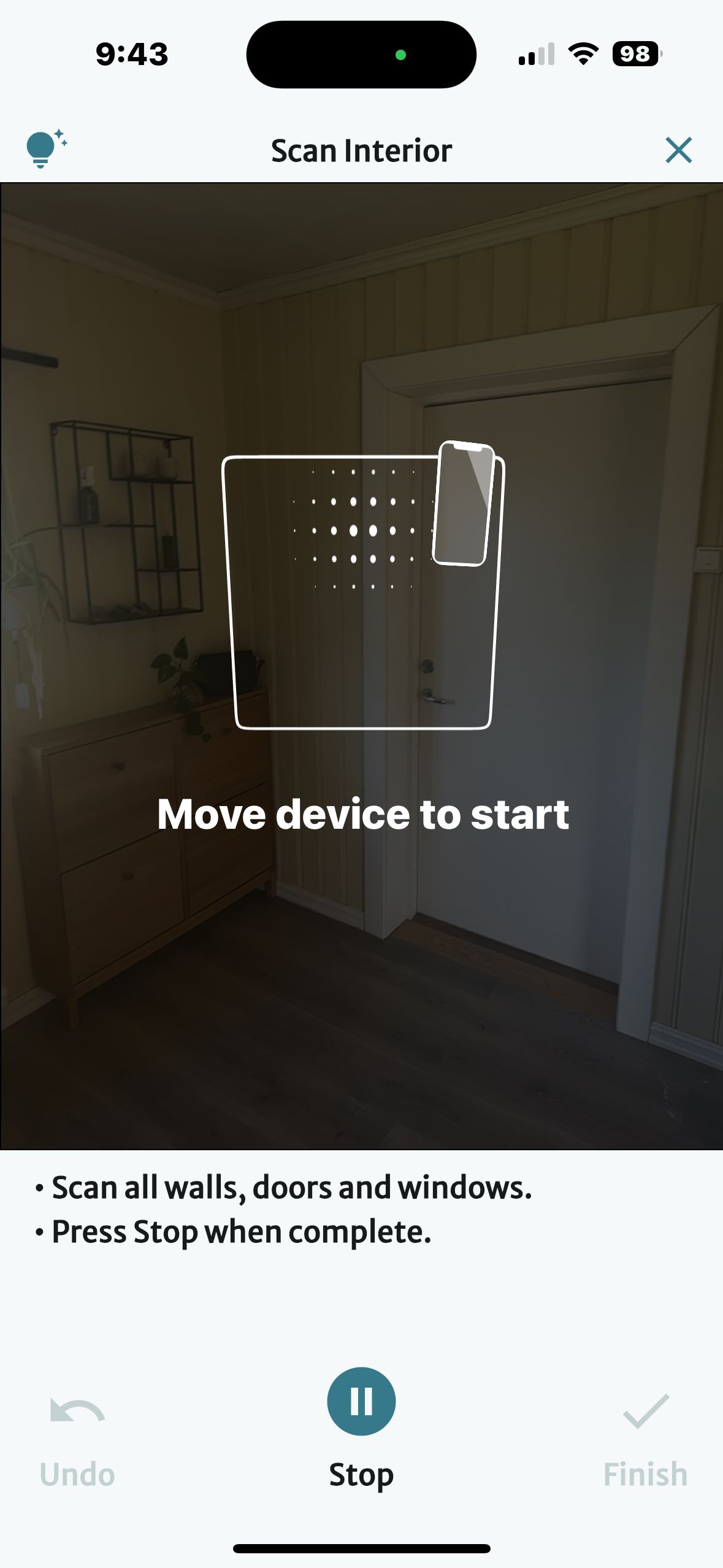
- Start: Hold your device vertically and point it straight ahead. When you are ready, tap Start.
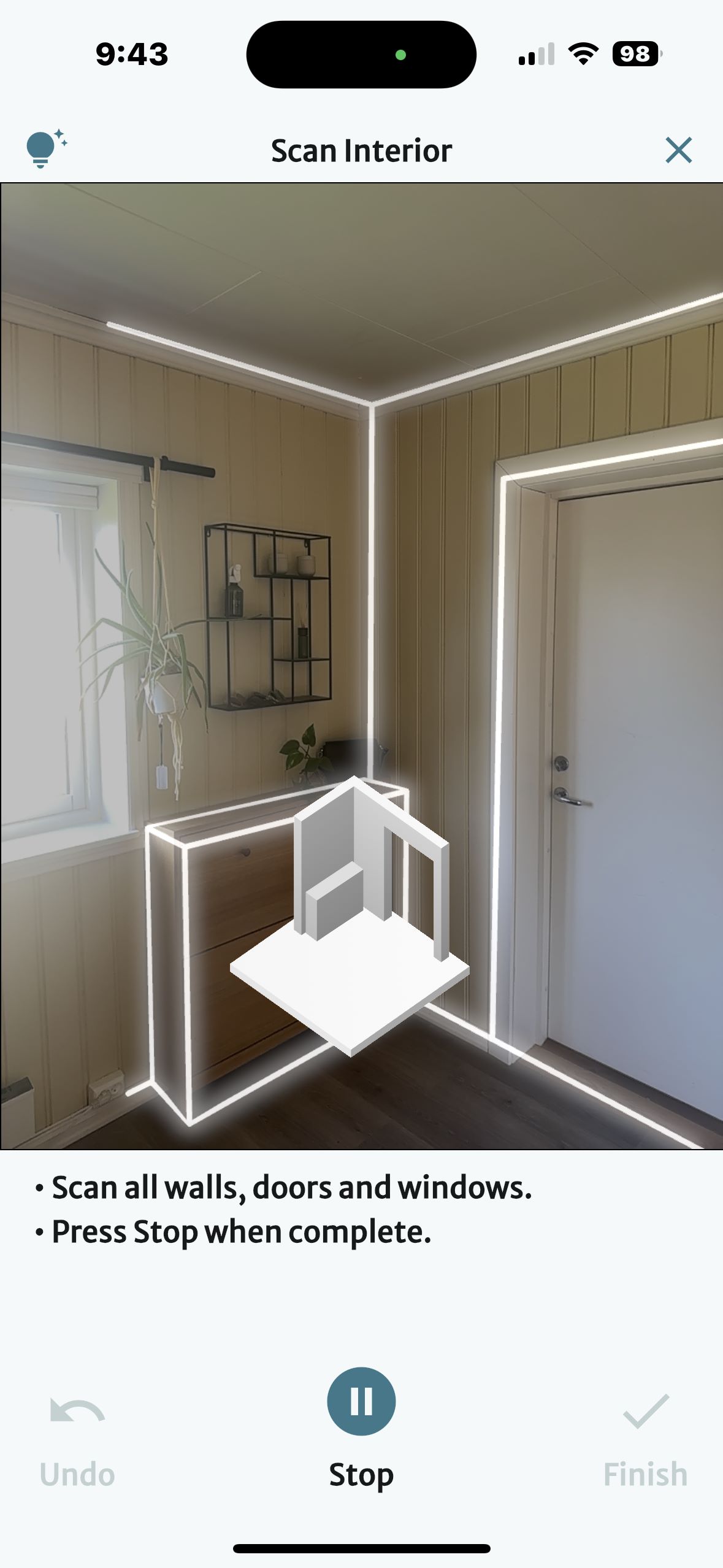
- Scan the first wall: Slowly tilt the device up and down so the camera “sees” the floor and the ceiling. As you do, white lines will appear to show wall and object detection, and a small white 3D model begins to form at the bottom of the screen.
- Move around the room: Move slowly around the room, walking sideways, with your device facing the wall. Avoid rapid movements.
- Directly face doors and windows: When you reach a door or window, try to face it directly. This helps the AI accurately detect the door swing angle and improves the overall capture quality.
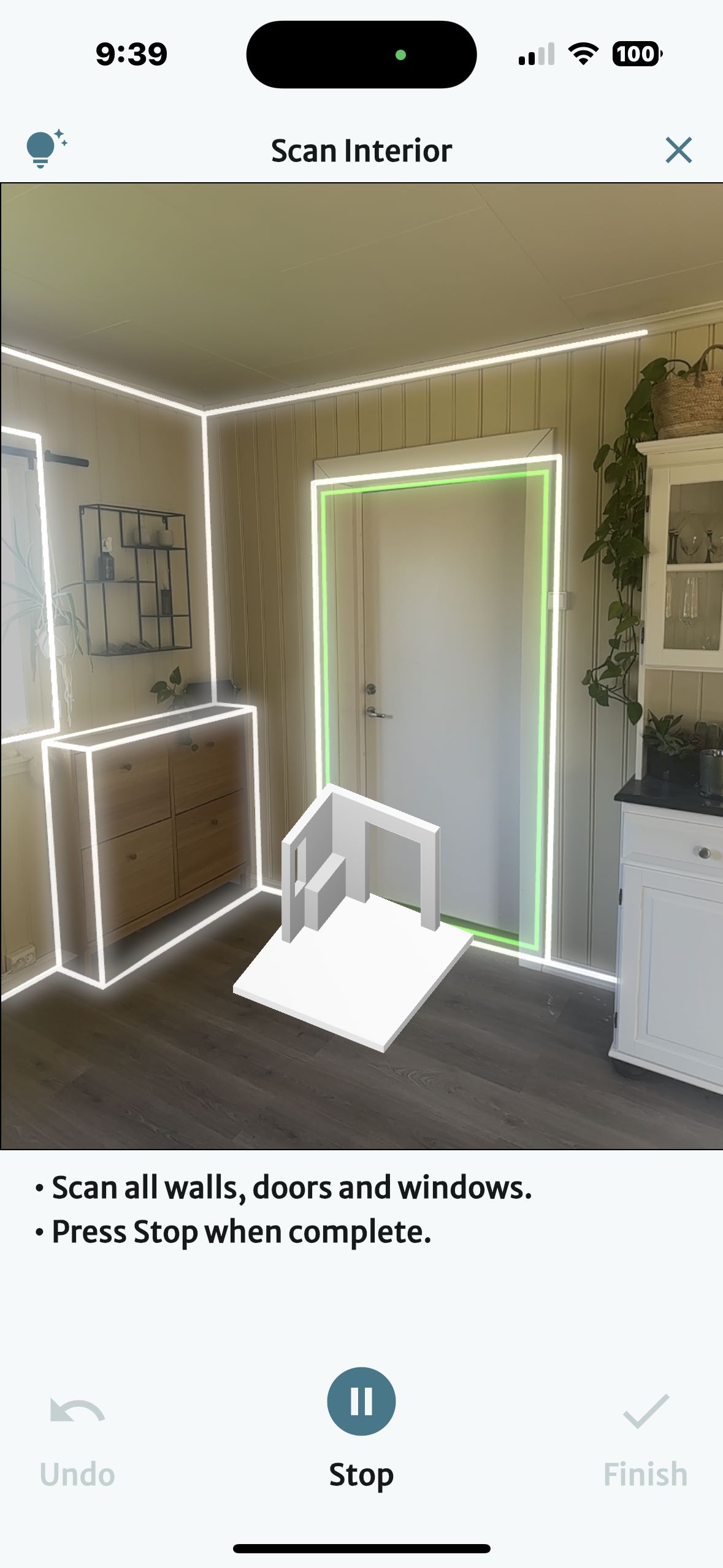
- Move between rooms: When you have completed a room, tap Stop, then move to the next room. For best results, close the door behind you. Once you’re positioned in the next room, tap Start to resume scanning. FloorCapture will save the coordinates to piece together the property's floor plan.
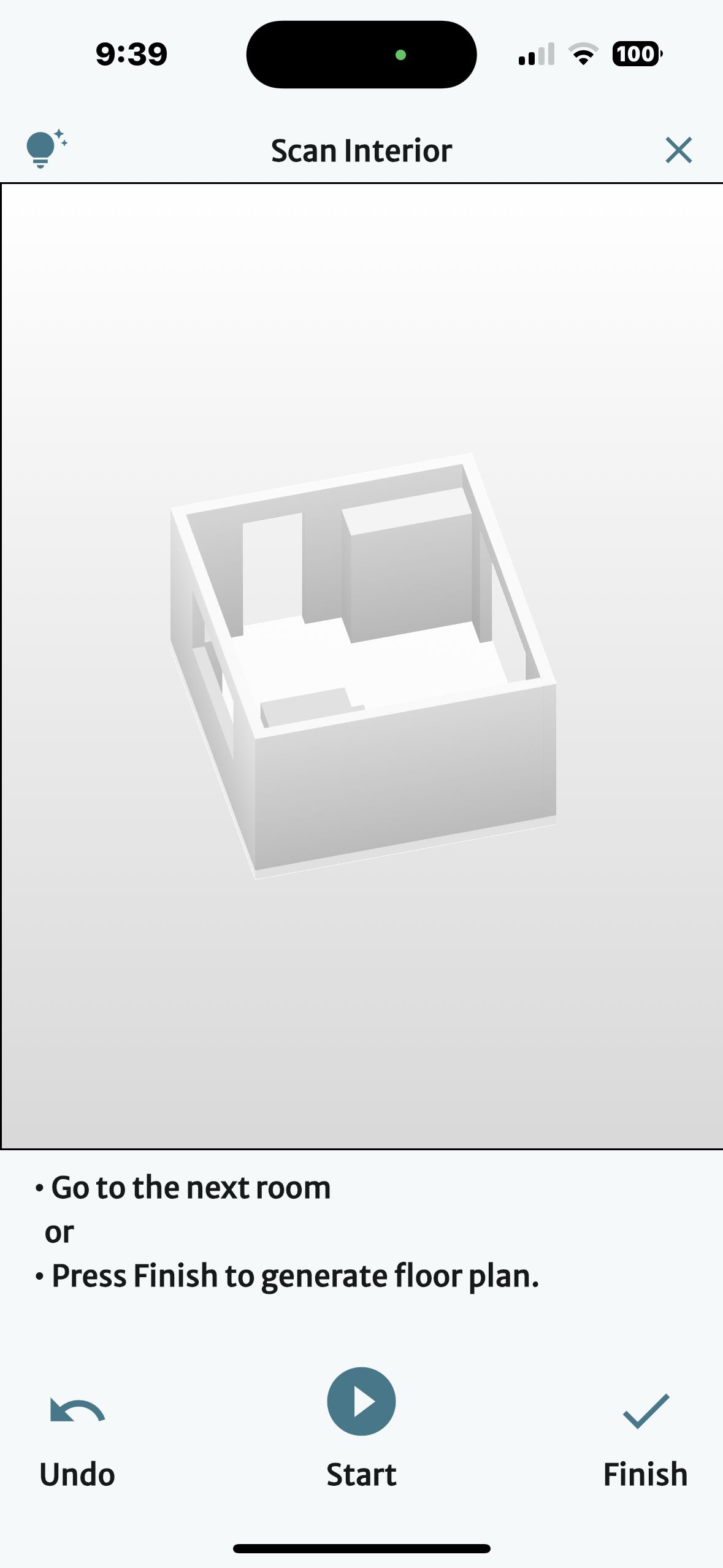
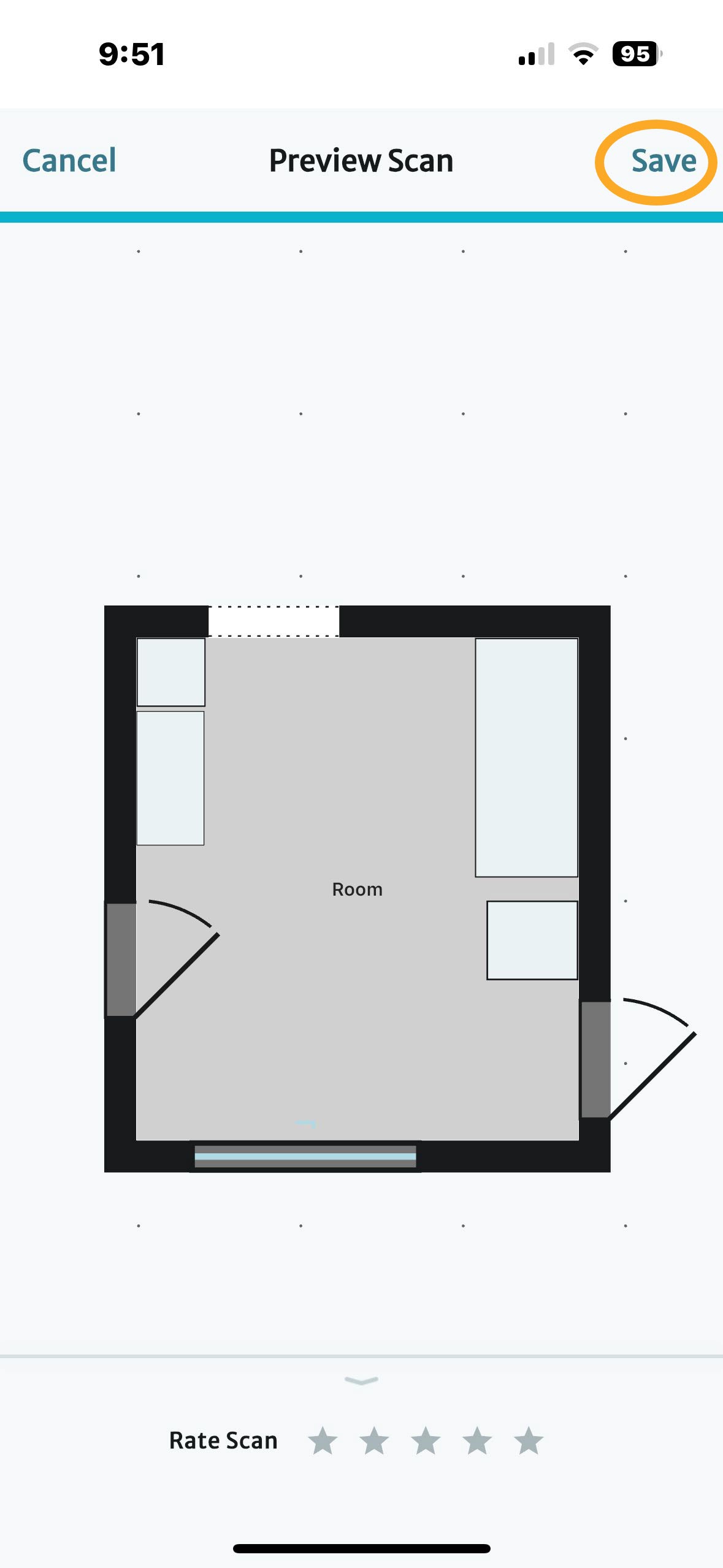
- Finish: When you are done with all rooms, tap Finish. You will see a preview of the floor plan.
- Save the project: Tap Save. This will save the project to the cloud, and you can open and edit it in the RoomSketcher app.
Tips
- Multi-level properties: Complete scanning the first floor and save it. Then click New Floor. You can find detailed steps here: How do I add another floor?
- Smaller areas: Smaller closets, outdoor areas, and darker storage areas may be challenging to scan. Once your scan is complete, open the project in the RoomSketcher app and add these yourself.
See also
Was this article helpful?
That’s Great!
Thank you for your feedback
Sorry! We couldn't be helpful
Thank you for your feedback
Feedback sent
We appreciate your effort and will try to fix the article