Sharing with clients, printing for a meeting, or saving for future reference is easy with FloorCapture. With just a few taps, you can export your 2D or 3D floor plans in the format that best suits your needs.
- Open your project
- Launch the FloorCapture app.
- Tap My Projects, then tap the project you want to work with.
- Generate your floor plan
- Tap Generate to generate 2D or 3D floor plans.
- Note: 3D floor plans may take up to 30 minutes to generate.
- Choose your download options
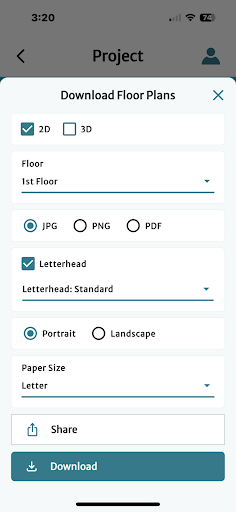
- Once the generated floor plans are ready, tap Download to open the Download Floor Plans page.
- If you have a multi-level project, choose which Floor to download.
- Choose your preferred format: JPG, PNG, or PDF.
- Select your Letterhead (if applicable).
- Pick an orientation: Portrait or Landscape.
- Choose the paper size that fits your needs.
- Download or Share
- Tap Share to open your device's sharing options—perfect for emailing, messaging, or printing directly.
Tap Download to save the floor plan to your device.
Tips
- JPG or PNG: Saved directly to your camera roll.
- PDF: Saved to your default location, or you can browse to choose a location on your device.
Was this article helpful?
That’s Great!
Thank you for your feedback
Sorry! We couldn't be helpful
Thank you for your feedback
Feedback sent
We appreciate your effort and will try to fix the article